

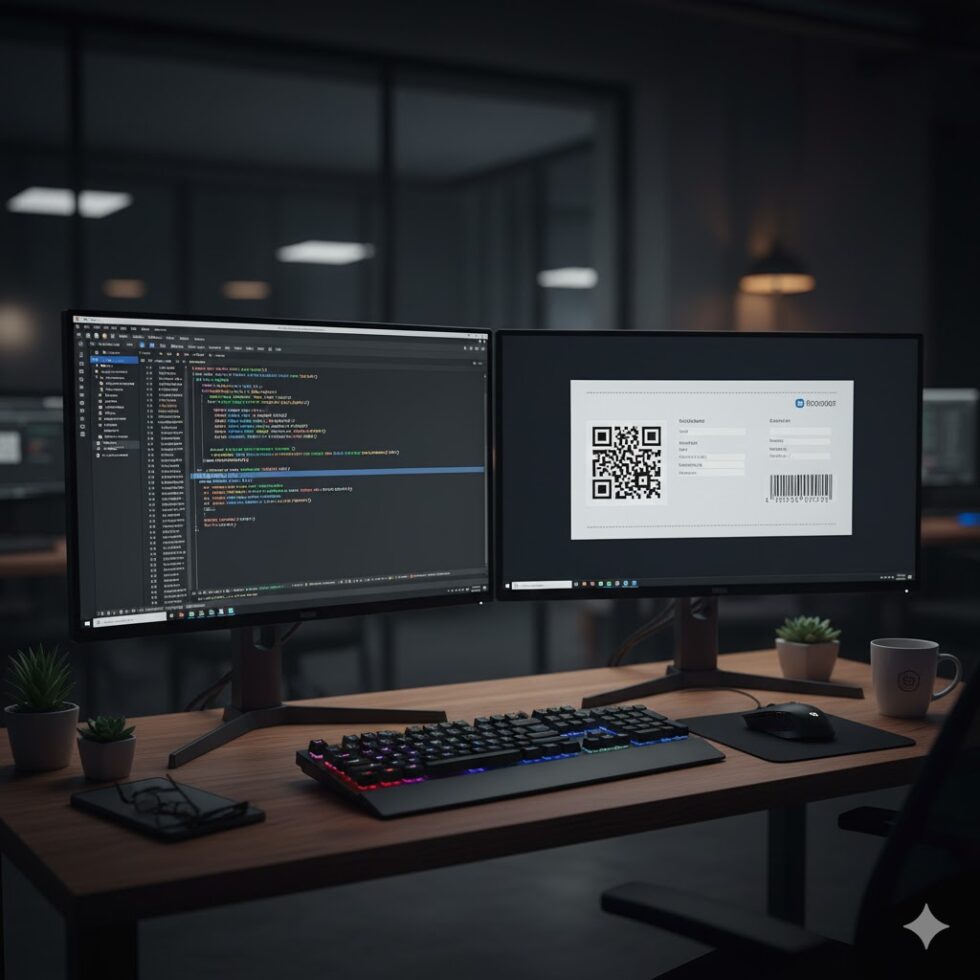
Zebra Programming Language, or ZPL, is a markup-style language that defines how text, barcodes, and graphics are printed on Zebra printers.
Although it’s been around for decades, ZPL remains the industry standard for label automation — primarily because of its simplicity, precision, and compatibility across printer models.
If you’ve ever found yourself digging through outdated PDFs to remember what ^FO or ^B3 means, this guide is for you. Here’s a modern, developer-friendly reference for the most commonly used ZPL commands, complete with examples and best practices.
The Basics of ZPL Structure
Every ZPL file follows a basic pattern:
^XA
(commands)
^XZ
- ^XA marks the start of a label.
- ^XZ marks the end.
Everything in between defines the layout, including positions, fonts, barcodes, and images.
Positioning Elements
^FO — Field Origin
Sets the starting position (x, y) for the next element.
^FO100,50
^FDHello ZPL!^FS
- Moves the cursor 100 dots right and 50 dots down.
- Every element that follows starts from this origin until redefined.
^FS — Field Separator
Marks the end of a field — think of it as a “close tag.”
Text Formatting
^A — Font Selection
^A0N,50,40
- 0 = font number (0 is scalable Swiss 721).
- N = normal orientation (R, I, B for rotated versions).
- 50,40 = height and width in dots.
Pro Tip: Use scalable fonts (like ^A0) for modern printers. Bitmap fonts (A–E) are faster but less flexible.
^FD — Field Data
Specifies the text content to print. Always closed with ^FS.
^FO50,50
^A0N,40,40
^FDProduct Name: Widget-X^FS
Barcodes and QR Codes
^BY — Barcode Field Default
Defines width and ratio for barcodes.
^BY2,3,50
- 2 = module width
- 3 = wide:narrow ratio
- 50 = barcode height
^BC — Code 128 Barcode
^FO100,100
^BCN,100,Y,N,N
^FD1234567890^FS
This creates a vertical Code 128 barcode, 100 dots tall, with human-readable text.
^BQN — QR Code
^FO150,150
^BQN,2,5
^FDLA,https://example.com^FS
Encodes URLs or data matrix strings in seconds.
Zebra’s QR implementation (^BQN) supports advanced error correction and UTF-8 encoding.
Shapes and Lines
^GB — Graphic Box
^FO50,50
^GB400,200,3,B,0^FS
- Draws a box 400×200 dots with a 3-dot border.
- Replace B with W for white lines on dark backgrounds.
^GD — Graphic Diagonal Line
^FO50,300
^GD300,200,5,B,1^FS
Creates diagonal lines (handy for layout separators or frames).
Images and Logos
^GF — Graphic Field
This command embeds raw image data.
Images are typically converted to ASCII-HEX using tools like Zebra Setup Utilities or — for faster cloud workflows — ZPL.ai.
Example snippet:
^GFA,1234,1234,12,:Z64:eJztwQEBAAAAwqD1T20JT6AAAAAAAAAAAAA==
Label Formatting Commands
| Command | Description | Example |
| ^PW | Print Width | ^PW800 sets label width to 800 dots |
| ^LL | Label Length | ^LL1200 defines height |
| ^LH | Label Home | ^LH0,0 resets top-left coordinate |
| ^PR | Print Rate | ^PR5 increases speed |
| ^MD | Darkness Level | ^MD15 darkens print slightly |
Proper calibration of these values ensures labels print consistently across printer models and resolutions.
Conditional and Variable Data
ZPL supports simple variable data through external systems (ERP, WMS) or placeholders.
^FN1
^FS
^FD^FN1^FS
Many users replace variables dynamically via API or middleware — something cloud tools like ZPL.ai simplify with direct variable mapping and live previewing.
Common Pitfalls to Avoid
- Overlapping fields: Always reset positions with ^FO before new data.
- Unsupported fonts: Check printer memory for downloaded fonts.
- Encoding mismatches: Use ^CI28 to enable UTF-8 text.
- Printer memory overflow: Delete unused graphics regularly.
A single missed ^FS can break an entire label, so validating code visually before deployment is critical.
Debugging and Testing
To test ZPL commands safely, use a visual interface instead of raw printer output.
Cloud renderers like ZPL.ai let you paste code, render instantly, and catch syntax issues before labels are wasted.

Final Thoughts
ZPL may look old-school, but it remains one of the most reliable and flexible printing languages ever created.
Understanding its syntax is key to mastering label automation — and the fastest way to learn is by experimenting visually.
Before deploying your next batch of label code, test it in the zpl viewer to confirm positioning, font scaling, and barcode integrity instantly.