
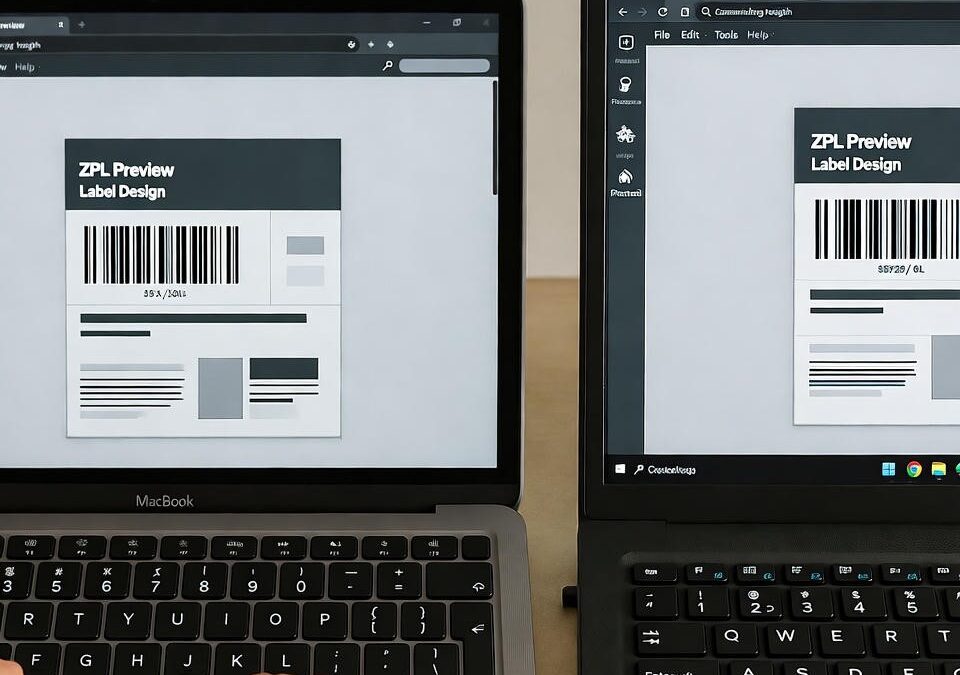
For years, developers working with Zebra printers faced the same headache: ZPL label previews simply didn’t work properly across systems.
You’d find one tool for Windows, another for Mac, and none gave you a true preview of what would actually print.
Today, that limitation is gone.
Whether you’re on macOS, Windows, or even Linux, you can render and test your labels directly from your browser — no printer drivers, no command lines, no guesswork.
Let’s go over how to preview ZPL labels smoothly on any system, and why the right setup can save your entire team hours of trial and error.
Why Cross-Platform Previewing Matters
If you’ve ever sent a label to print from a Mac, then checked the same file on Windows and noticed it looked different, you already know how inconsistent old ZPL workflows could be.
Fonts, DPI, margins, and even barcode scaling could vary wildly depending on your OS.
That’s because traditional preview tools were built for specific platforms, not for the cloud.
But printing isn’t platform-specific — it’s operational.
Your logistics system doesn’t care whether the developer codes on a Mac or a PC; it just needs the label to print correctly.
By moving previewing to the browser, modern ZPL renderers eliminate those compatibility gaps entirely.
Native Apps vs. Browser-Based Preview
A few years ago, the go-to method for previewing ZPL labels was to install heavy software such as ZebraDesigner or LabelView.
These programs worked, but only after a painful installation process and device configuration.
Now, online previewers provide the same precision — instantly and across all systems.
They:
- Run natively in Chrome, Safari, Edge, or Firefox.
- Require no USB drivers or local printer setup.
- Let you paste ZPL code and see the result immediately.
- Accurately simulate 203, 300, or 600 DPI.
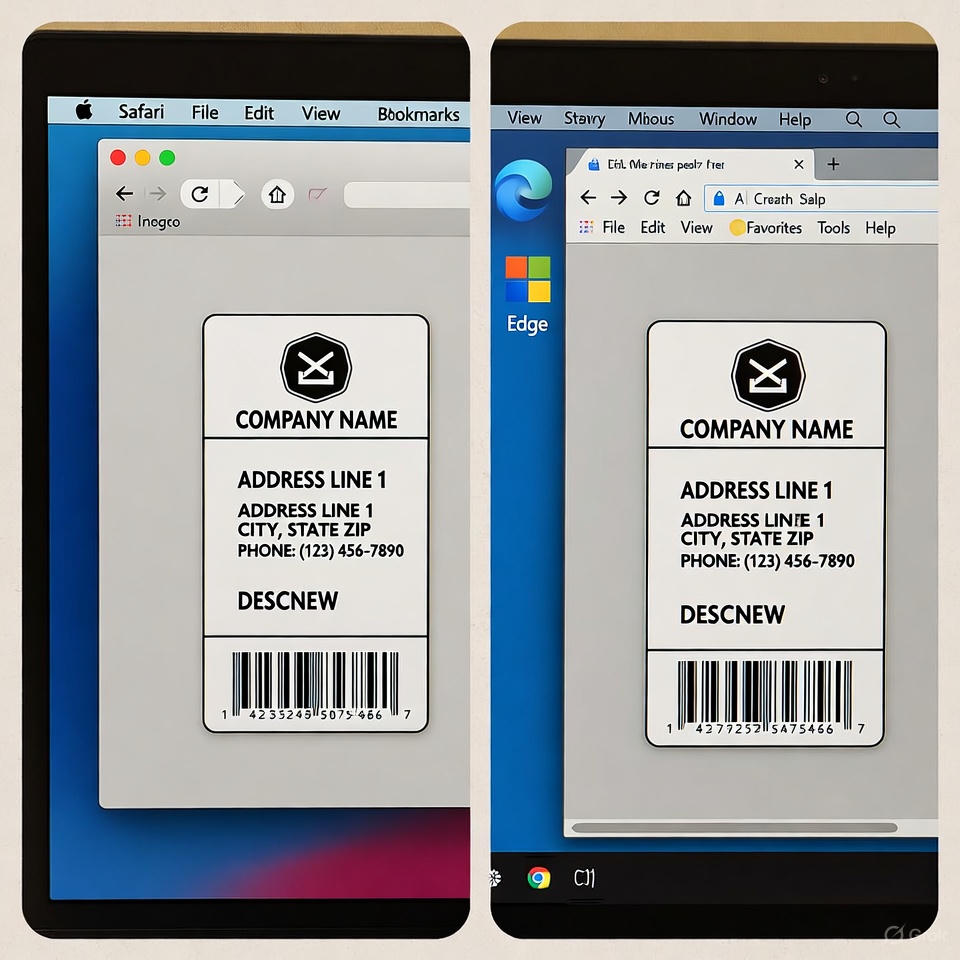
Whether you’re running macOS Sonoma or Windows 11, the preview looks identical.
Quick Guide: Previewing a ZPL File on Mac or Windows
- Open your ZPL file — It can be a .zpl text file or copied code from your system.
- Go to your preferred online previewer, such as zpl.ai.
- Paste the ZPL code into the editor window.
- Click “Preview” — You’ll get a pixel-perfect rendering of what your printer will produce.
- Adjust printer settings (DPI, label size, margins) if needed.
- Validate barcodes, text, and logos visually before sending the label to print.
This single workflow replaces dozens of manual print tests — and it works identically whether you’re on Mac or Windows.
Developer-Friendly Integration
For teams working in mixed environments, being able to preview labels consistently across operating systems is critical.
A developer can test layout changes on a Mac, while an operator on a Windows workstation confirms alignment without ever touching a printer.
This consistency also improves debugging.
When a label doesn’t look right, both users see the same thing on screen — no “it works on my computer” excuses.
And because tools like zpl.ai run entirely in the browser, they can even be integrated directly into ERP or warehouse management dashboards for live testing.
Real-World Scenario
A small manufacturing company in Texas used to maintain two separate setups: one on Windows for production labels and another on Mac for design previews.
Every time a designer updated a label, the output changed slightly once printed.
After switching to a cloud-based system, both sides now work on the same interface.
The layout stays identical across all devices, no matter who edits the ZPL code or where it’s printed.
What used to take a full afternoon of reprinting and testing now happens in five minutes.
The Takeaway
Previewing ZPL files doesn’t need to depend on your operating system anymore.
By using a web-based renderer, you get full consistency across Mac, Windows, and any browser — all without driver installations or software conflicts.
For anyone working with ZPL regularly, the smartest move is to adopt a cross-platform zpl viewer.
It gives you instant feedback, true print accuracy, and the confidence that your labels will look perfect everywhere.