If you’ve ever tried to print a company logo or product image on a Zebra printer, you already know it’s not as simple as dropping a PNG onto your label.
Printers that use ZPL (Zebra Programming Language) don’t understand images directly — they need code.
That’s where the magic of image-to-ZPL conversion comes in. It’s not just about “adding a picture.” It’s about teaching your printer exactly how to recreate that image using dots, density, and commands — pixel by pixel.
Let’s break down how you can do that properly, without complex installations, broken images, or hours wasted debugging commands.
The Common Mistake: Copy-Paste Images Into Label Designers
One of the first things new users try is to import their company logo into a label design app and hope the printer “gets it.”
Unfortunately, what prints out is usually a black square, a mess of lines, or nothing at all.
That happens because ZPL printers need a monochrome bitmap translation — an image made up of tiny black and white points that correspond to print dots.
If your file isn’t converted properly, the printer doesn’t know what to do with it.
That’s why converting the image into ZPL code is essential — it ensures that your logo is rendered cleanly, efficiently, and compatible with the printer’s resolution.
A Smarter Way to Convert: Cloud-Based Tools
In the past, this process required installing drivers, command-line utilities, or Zebra’s ancient desktop tools.
Today, you can do it all online in seconds.
Here’s how:
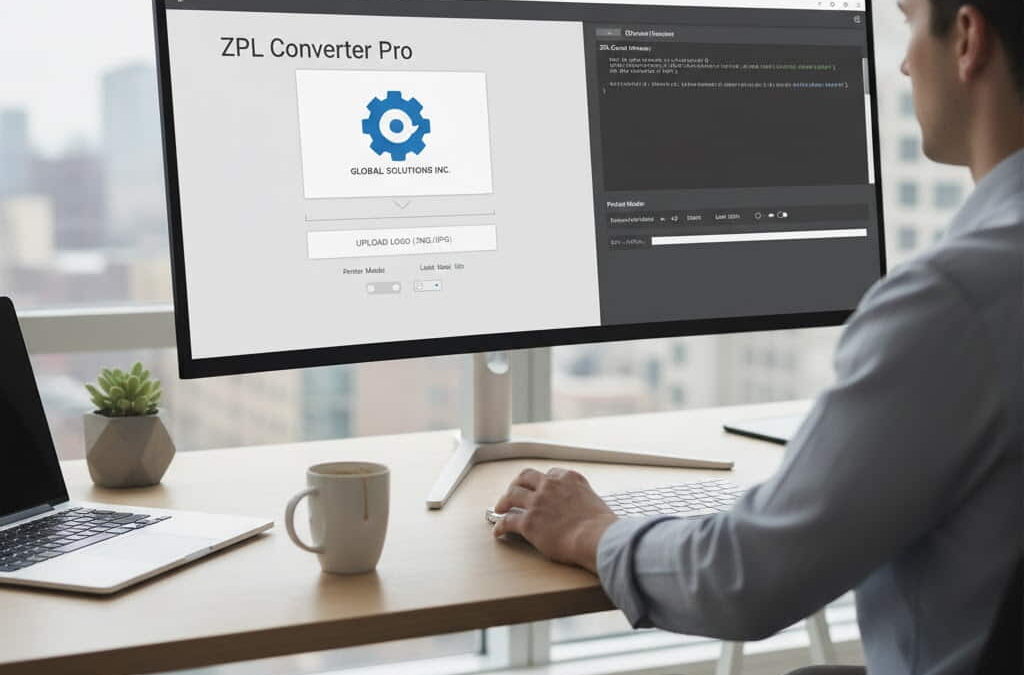
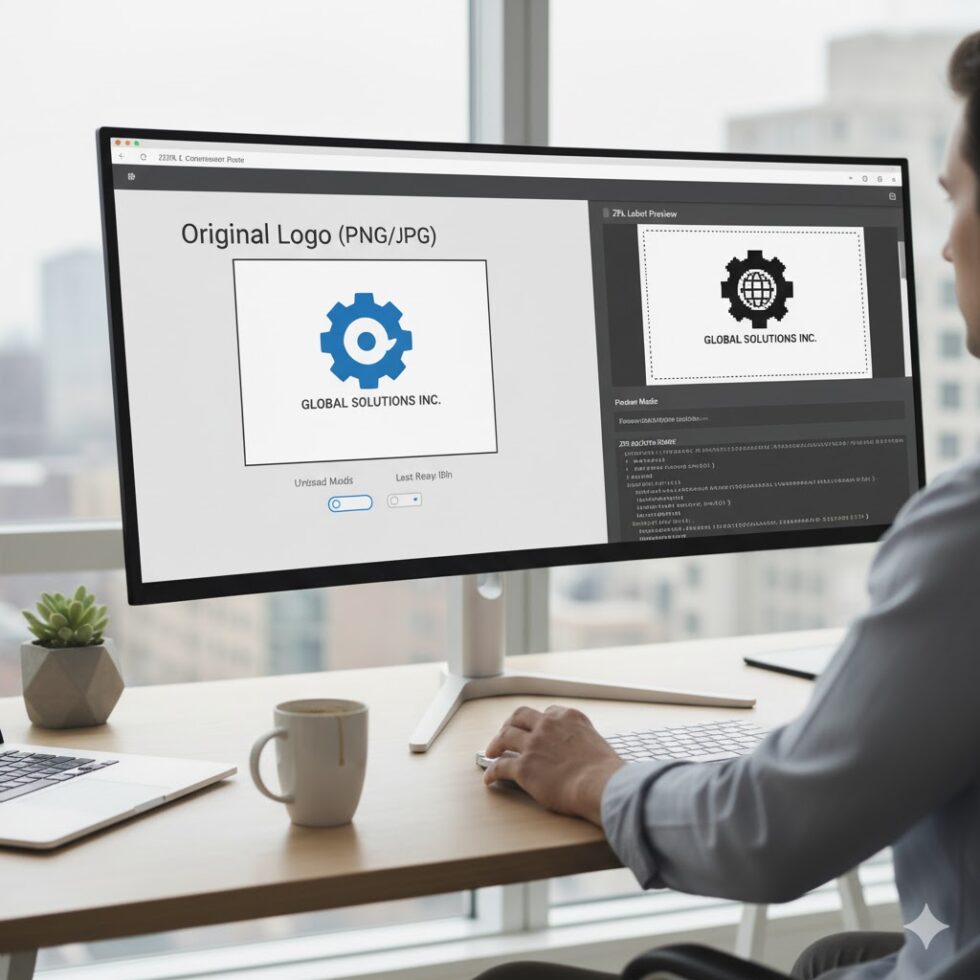
- Open your image converter – Go to a browser-based viewer like zpl.ai.
- Upload your logo or image file – PNG, JPG, BMP, or SVG are all accepted.
- The system instantly converts it into binary ZPL data.
- Preview the result on-screen to confirm the logo looks correct.
- Copy the ZPL code and paste it into your label file or template.
That’s it — no software, no dependencies, and no driver setup.
Understanding the ZPL Image Conversion
When you upload a logo, the converter doesn’t just compress it — it interprets it line by line, converting each pixel into hexadecimal data.
Here’s a simplified explanation of what happens under the hood:
- The image is resized to fit your label’s width.
- Colors are reduced to pure black and white.
- Each pixel is translated into binary (1 for black, 0 for white).
- That binary data is grouped and encoded using ZPL’s ~DG command (Download Graphic).
- The resulting file is ready for your Zebra printer’s memory.
This process ensures the image looks sharp and consistent no matter which printer you use.
Best Practices for Image Quality
Even with great tools, a few simple rules make all the difference:
- Use high-contrast logos with clear outlines.
- Avoid grayscale — ZPL is binary only (no soft shadows).
- Keep dimensions reasonable (under 300x300px for logos).
- Use transparent PNGs if possible; they reduce background artifacts.
- Always preview before printing.
With zpl.ai, you can simulate exactly how your image will print based on your printer’s DPI (203, 300, or 600), ensuring what you see is what you get.
Advanced Tip: Embedding the Image in Your Code
Once your logo is converted, you can embed it in your label template using commands like:
^XA
~DGLOGO.GRF,12345,678,DATA…
^FO50,50
^XGLOGO.GRF,1,1
^FS
^XZ
But don’t worry if that looks intimidating — tools like zpl.ai generate the full ready-to-use code for you.
You just copy it and drop it into your system.
Real-World Use Case
A logistics company wanted every outgoing package label to include their small company logo.
Previously, they printed blank labels and applied stickers manually — a waste of time and money.
After switching to zpl.ai, they simply uploaded the logo once, embedded the ZPL code in their label template, and automated printing through their ERP.
Result: over 40% faster labeling and a unified brand look on every shipment.
Why the Tool You Use Matters
Not all converters are equal.
Some tools generate bloated, inefficient code that slows down the printer. Others lose sharpness or invert colors.
zpl.ai was built with precision and consistency in mind.
It produces optimized ZPL output, lighter in data weight and accurate in rendering — exactly what developers and production teams need when dealing with large printing volumes.
If you care about speed, compatibility, and visual consistency, your tool matters.
The Takeaway
Turning an image or logo into ZPL viewer is no longer a technical chore — it’s a quick, repeatable process.
And when done correctly, it transforms your labels from plain utility prints into branded, professional assets.
Whether you’re printing shipping labels, product IDs, or packaging artwork, zpl.ai lets you preview, test, and export your logo-ready ZPL code instantly from the browser.
So next time someone asks you how to get their logo onto a Zebra label, you can smile and say:
“Easy. Two clicks and it’s done.”