

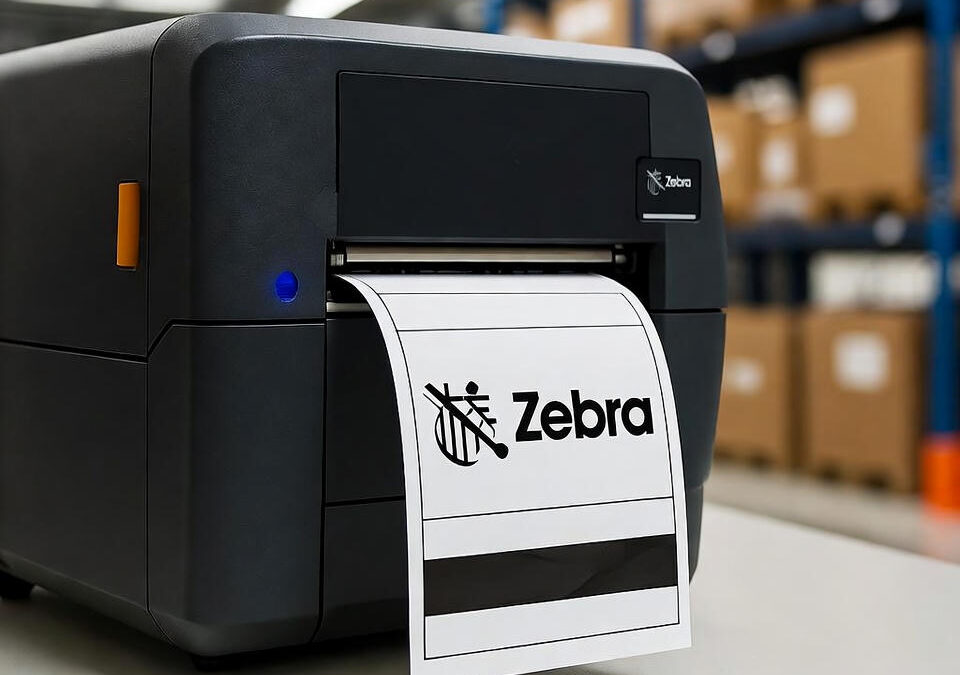
There’s something powerful about seeing your brand printed right on a label.
A simple logo can turn an anonymous package into a professional, trusted delivery.
But when it comes to Zebra printers and ZPL labels, adding that logo isn’t as straightforward as dropping in a JPG or PNG.
You need to speak the printer’s language — and that means converting your logo into ZPL graphic data.
The good news? Once you understand the process, it’s fast, repeatable, and perfectly scalable for any business size.
Why Logos Don’t “Just Work” in ZPL
ZPL (Zebra Programming Language) doesn’t print images directly.
Instead, it uses a special command — ~DG — to “download” an image into printer memory as a GRF file (Graphic File).
That’s how Zebra printers store graphics: a sequence of black-and-white bits that tell the printhead exactly which dots to heat up.
If you try to print a full-color or grayscale logo without converting it, the printer has no idea what to do with it — and you’ll likely end up with a solid black square.
So before you can add a logo to your ZPL label, you have to translate it into something the printer understands.
Step 1: Prepare Your Logo
Use a simple, high-contrast version of your logo — ideally black and white.
Remove shadows, gradients, and fine details that might disappear when printed.
Then, resize it. Logos that are too large take up memory and print slower. A good target is around 200–300 pixels wide for most shipping or product labels.
Finally, save it as a PNG (transparent background preferred).
Step 2: Convert the Logo to ZPL Code
There are plenty of online tools for this, but you’ll want one that gives you clean, optimized output.
With zpl.ai, for example, you can simply:
- Open your browser.
- Upload the PNG.
- Get a ZPL-compatible preview.
- Copy the generated code.
The converter turns your image into binary hex data, structured like this:
~DGLOGO.GRF,12345,678,DATA
Each number and letter defines how the image will print, pixel by pixel.
Step 3: Insert the Logo into Your Label
Once you’ve converted the logo, insert it into your ZPL label file using the ^XG command:
^XA
^FO30,40
^XGLOGO.GRF,1,1
^FS
^XZ
- ^FO30,40 sets the X/Y position (where the logo will print).
- ^XGLOGO.GRF calls the image you uploaded.
- The ,1,1 tells the printer to print it at full size and full contrast.
If you preview your label at this point, you should see the logo exactly where you placed it.
Step 4: Fine-Tune Placement and Size
Even after the first successful print, you might need a few small tweaks.
You can shift the logo position using the ^FO command, or adjust the scaling directly in your conversion tool.
It’s good practice to test several variations before going into full production — especially if your printer fleet includes multiple models with different DPI settings.
Step 5: Store the Logo in Printer Memory
If you’re printing hundreds or thousands of labels a day, re-uploading the logo each time wastes time and memory.
Instead, you can store it permanently in your printer’s memory so it’s always available.
Add this once:
~DGLOGO.GRF,….
Then call it in every future label with:
^XGLOGO.GRF,1,1
Simple, efficient, and clean.
Troubleshooting: When the Logo Prints Wrong
If your logo prints inverted (white on black), that’s usually a color inversion issue during conversion — just tick the “invert colors” option in your converter.
If it looks pixelated, it’s likely too small or too compressed. Go back to your original PNG and re-export it with more contrast.
And if it doesn’t print at all, check the file name consistency:
ZPL is case-sensitive and doesn’t like spaces or special characters in file names.
Why Branding on Labels Matters
A crisp, visible logo does more than make your packaging look good — it communicates reliability.
Whether you’re shipping products, tracking parts, or labeling inventory, having your company’s logo on every piece reinforces identity and trust.
And now that you know how to do it in ZPL, it’s one less thing your design team has to worry about.
To make sure your logo looks exactly right before printing, always preview it using a professional zpl viewer — you’ll see the exact placement and sharpness before sending it to the printer.