

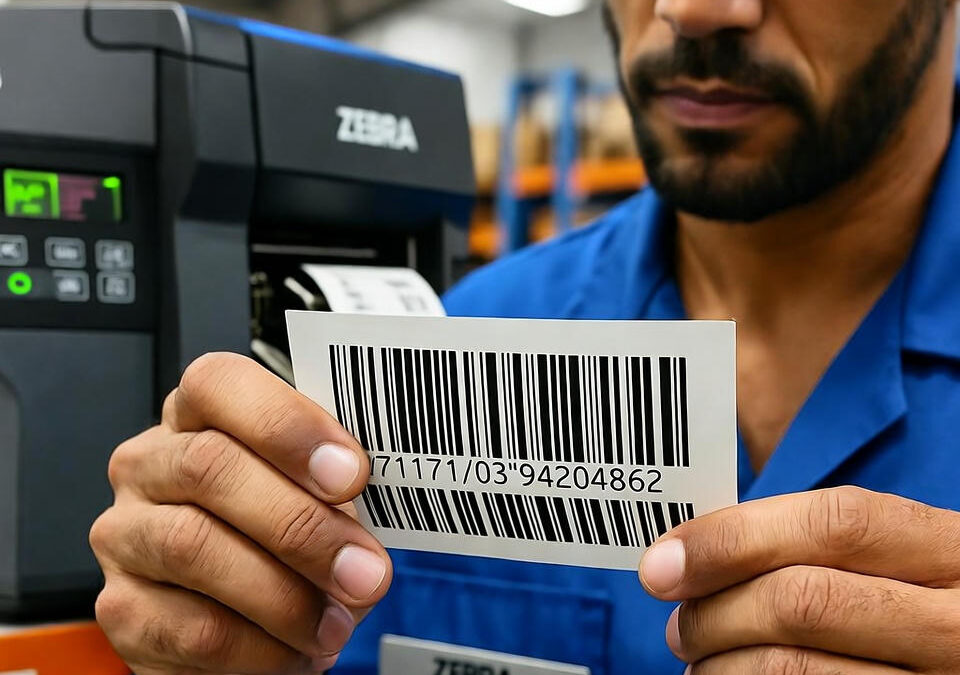
There’s nothing more frustrating than a barcode that looks fine but won’t scan.
You send your perfectly formatted ZPL code to the printer, the label comes out crisp, yet the handheld scanner just blinks — no read, no beep, no confirmation.
If that’s ever happened to you, you already know how painful it can be to trace what went wrong.
ZPL barcodes are sensitive. A single extra space, an incorrect DPI value, or a missing command can turn an entire batch of labels into wasted paper.
This guide will help you identify the most common causes of unreadable or distorted barcodes in ZPL and, more importantly, how to fix them without trial and error.
The Silent Culprit: Wrong Print Density
Most barcode issues start with density mismatches.
When your printer’s resolution (203, 300, or 600 DPI) doesn’t match the one used to design the label, the printed lines become too thin or thick.
To fix this, adjust your ZPL file’s ^BY parameter:
^BY3,2.0,100
- The first number controls bar width ratio (thicker or thinner).
- The second defines narrow bar width (in dots).
- The third sets the barcode height.
If your barcodes look too “fat” or unreadable, experiment with smaller values and re-preview them.
Inconsistent Scaling Across Printers
If you’re printing the same ZPL file on multiple printers and some work while others don’t, the issue is scaling.
Not every printer model interprets coordinates and bar widths equally.
To prevent this, explicitly define print width and label length at the start of your file:
^PW812
^LL1218
This tells the printer your exact label dimensions, overriding default memory settings that might distort proportions.
Data Encoding Errors
A barcode is only as good as the data you feed it.
Common mistakes include:
- Missing or misplaced start/stop characters (^BC vs ^B3).
- Extra line breaks at the end of your variable data.
- Non-ASCII characters hidden in the string.
To catch this early, print one test barcode with the raw data visible next to it:
^FO50,200^FD*123456789012*^FS
^FO50,320^FB300,1,0,C,0^FD*123456789012*^FS
If your label shows unexpected symbols or spacing, clean your data input before it reaches the printer.
Barcode Type Confusion
Not all barcodes are interchangeable.
If your scanner expects Code 128 and you’re printing EAN-13, it won’t decode properly.
ZPL supports many barcode formats, including:
- ^BC – Code 128
- ^BE – EAN-13
- ^B3 – Code 39
- ^BQ – QR Code
Make sure your command matches your scanner’s decoding standard.
It’s a simple check that saves a lot of wasted effort.
Overheating and Ribbon Issues
Sometimes, the problem isn’t in your code at all.
If your barcodes look blurred, faded, or uneven, the printhead might be dirty or the ribbon temperature too high.
Run a cleaning cycle and check your media settings.
Thermal transfer printers can misbehave if they’re set to “Direct Thermal” mode by mistake — it changes the darkness level and ruins barcode contrast.
Avoid the Guesswork: Visual Validation
Modern teams don’t troubleshoot by guessing — they test visually.
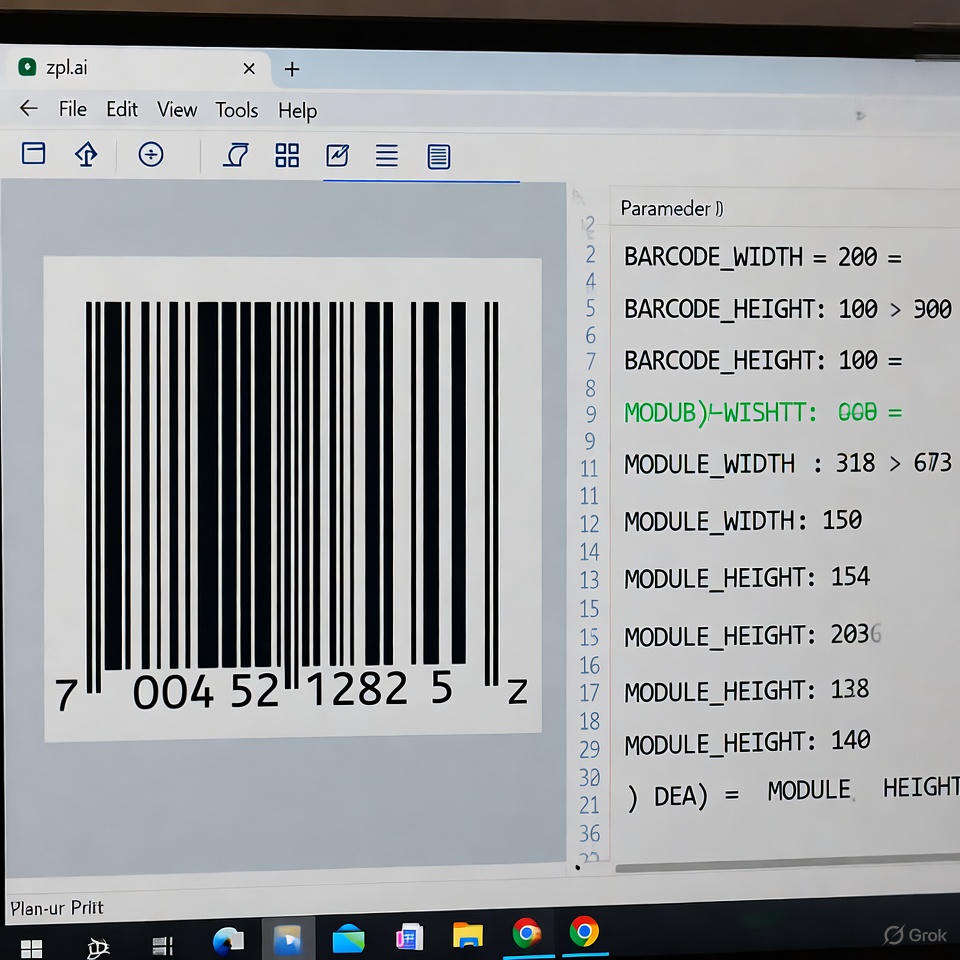
Using a browser-based ZPL simulator lets you see what your barcode will look like before you waste a single label.
You paste your ZPL, render the preview, adjust bar width, and verify the contrast visually.
The image you see is exactly what your printer will produce.
Real Warehouse Story
A fulfillment center in Ohio once had a daily batch of 2,000 outgoing labels rejected by their carrier because the barcodes didn’t scan.
They checked everything — DPI, label size, printer alignment — and still couldn’t find the issue.
Turns out, the ^BY ratio was off by 0.5 dots.
Once corrected and previewed online, the scanning success rate went from 61% to 100% overnight.
That single parameter cost them three days of shipments.
The Bottom Line
Barcode printing in ZPL isn’t just about code; it’s about precision and validation.
Even a flawless syntax can fail if you skip testing your output visually.
Before sending your labels to print, render them in a reliable zpl viewer to confirm every line and ratio is perfect.
It’s the fastest, safest way to ensure your barcodes always scan on the first try.