When One Millimeter Becomes a Big Problem
If you’ve ever printed a batch of labels only to find that the barcodes are shifted or the text runs off the edge, you’ve experienced one of the most frustrating ZPL issues: misalignment.
It’s a small detail with big consequences. Misaligned labels waste materials, slow down operations, and often go unnoticed until after shipping starts. The good news? Most alignment issues in ZPL have predictable causes — and simple fixes.
In this article, we’ll walk through the most common reasons for label misalignment and how to correct them using best practices and tools like zpl.ai, a modern online ZPL viewer designed for accurate previews and testing.
Why Alignment Problems Happen
ZPL gives you full control over label layout through coordinates, fields, and formatting commands. But that flexibility also means precision errors can easily slip in. Common causes include:
- Incorrect label dimensions in the ZPL header
- Misconfigured printer DPI or media size
- Overlapping field origins (same X/Y coordinates)
- Inconsistent use of rotation or justification commands
- Using variable data fields without adjusting spacing
When you print directly without previewing, you have no visual feedback — so you only discover the issue after wasting a batch of labels.
The Simple Fix: Validate Before You Print
The best way to fix alignment errors is not to let them reach the printer in the first place.
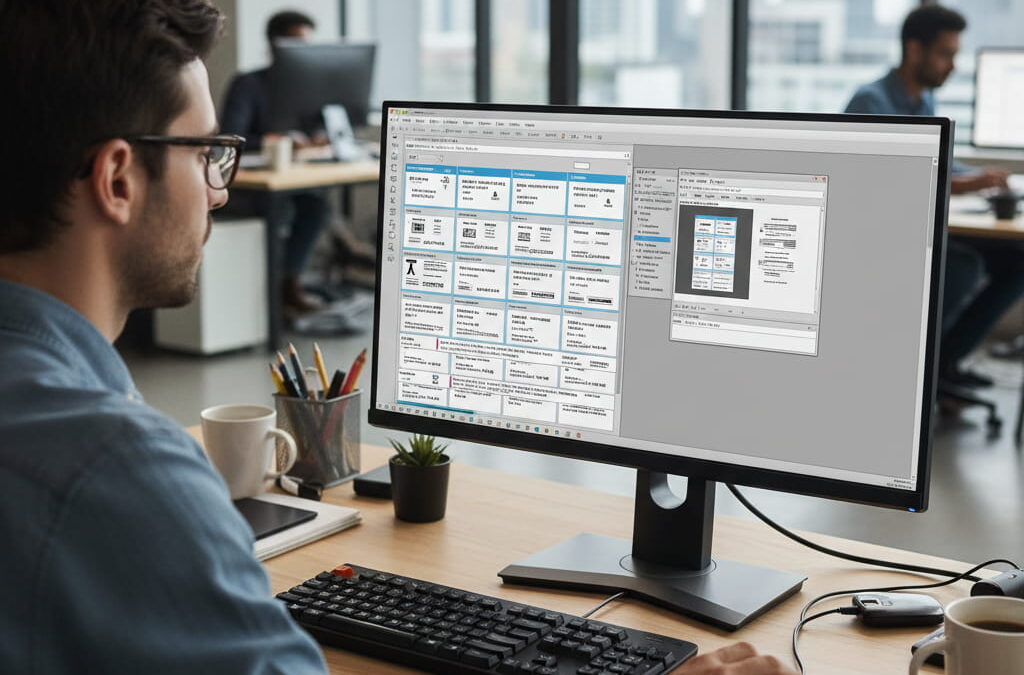
Using a cloud ZPL viewer lets you check label position, text flow, and barcode spacing instantly. You can paste your code, render it online, and adjust coordinates in real time until everything lines up perfectly.
With zpl.ai, for example, you can simulate your printer’s DPI, label size, and orientation before printing — giving you an exact preview of what your hardware will produce.
Check Your Label Setup Commands
Many alignment issues originate from just a few ZPL commands that control layout. Review these carefully before printing:
- ^PW (Print Width): Sets the printable width of the label. If too small, content will be cut off.
- ^LL (Label Length): Defines label height. Incorrect values can cause misaligned bottom content.
- ^LH (Label Home): Sets the top-left starting point for all coordinates. Adjust this if your entire label is shifted.
- ^FO (Field Origin): Controls the position of each element. Recheck X/Y values to ensure elements don’t overlap.
- ^FW (Field Orientation): Make sure your rotation matches the printer’s configuration (normal, 90°, 180°, 270°).
If you preview your ZPL in a viewer, it becomes easy to spot which command is causing a shift.
Adjust for Printer-Specific Differences
Different printers — even within Zebra’s lineup — can interpret coordinates slightly differently depending on DPI (203 vs 300 vs 600) or driver scaling.
Before deploying a label design across multiple locations or models, test it in a viewer that allows you to switch DPI and label dimensions.
zpl.ai makes this easy by letting you toggle DPI settings and instantly see how your design will print on each configuration, saving hours of troubleshooting.
Watch Out for Variable Data Expansion
Dynamic fields are another silent cause of misalignment. When variable data (like customer names or order IDs) is longer than expected, it pushes other fields out of alignment.
You can avoid this by:
- Setting maximum character lengths in your database.
- Allowing enough spacing in your ZPL coordinates.
- Testing sample data variations in your viewer before production.
Previewing different data scenarios using zpl.ai ensures every label layout holds up, even with unpredictable inputs.
Create an Alignment Checklist for Your Team
To standardize your label production, establish a quick internal checklist like this:
- Verify label width (^PW) and height (^LL).
- Check top margin and label home position (^LH).
- Confirm all coordinates are unique (^FO).
- Simulate at least one print at each DPI setting.
- Validate variable data fields.
This five-step process catches 95% of alignment issues before they ever hit a printer.
Using zpl.ai for Precision Previewing
Alignment problems often aren’t visible until after you print — unless you’re using the right tools.
zpl.ai provides an accurate, real-time simulation of your printer output. You can paste your ZPL, change label parameters, and see the results instantly, without wasting materials.
It’s also ideal for training new staff or verifying label templates from suppliers. Instead of running test prints, you validate everything visually in seconds.
For teams managing multiple printers or high-volume operations, this small step dramatically improves consistency and reduces errors.
Alignment Starts With Visibility
Misalignment may look like a minor inconvenience, but in a busy warehouse, it’s one of the most expensive “small” problems you can have. The fix isn’t complicated — it’s about previewing, validating, and standardizing.
By incorporating a reliable online ZPL viewer into your workflow, you eliminate guesswork and take control of label accuracy.
Tools like zpl.ai make that process effortless: fast, visual, and precise.
For a complete overview of how to preview, debug, and validate ZPL labels effectively, visit our detailed Online ZPL Viewer guide.